Unistellar troubleshooting
Unistellar Problems: "???" in the App, LED Colors, Blurry Images
The most common Unistellar telescope problems (Odyssey, Odyssey Pro, eQuinox 2 and eVscope 2) and Unistellar's own fixes: lost Wi-Fi connection, the Wi-Fi reset, what each LED color means, blurry stars and Enhanced Vision stopping.

Quick fix
For "???" or a lost connection, join the telescope's own Wi-Fi (eVscope-XXXX or Odyssey-XXXX), turn off mobile data and VPNs and stay within about 10 m; if it still fails, press the power button 10 times quickly to reset the Wi-Fi. Blurry stars on an Odyssey usually need 30 minutes of cooling and a new orientation; on an eQuinox or eVscope, turn the focus wheel.
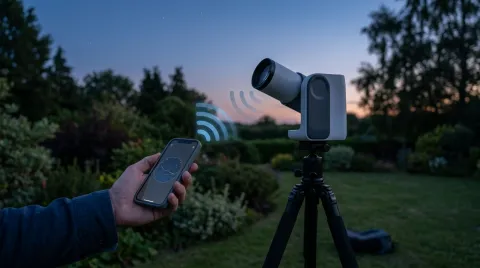
Unistellar telescopes create their own Wi-Fi network and are controlled entirely from the Unistellar app. Most problems owners search for are connection drops, blurry stars and Enhanced Vision (live stacking) stopping. These fixes come from Unistellar's help center and cover the Odyssey, Odyssey Pro, eQuinox 2 and eVscope 2.
What the LED color means
| LED | Meaning |
|---|---|
| Blue or red, steady | On and ready to connect |
| Purple, steady | Starting up or shutting down |
| Purple, blinks 5 times | Battery too low to start: charge it |
| White | Internal error: contact support |
"???" in the app, or it won't connect
"???" instead of the telescope status means the app can't talk to the telescope. Unistellar's steps:
- Turn on Bluetooth and Wi-Fi on your phone, switch on the telescope (LED steady blue or red) and open the latest Unistellar app. The telescope should appear in the list.
- Connect manually if it doesn't: in your phone's Wi-Fi settings, join eVscope-XXXX or Odyssey-XXXX. No password is needed unless you set one.
- Turn off mobile data and any VPN. If your phone is also connected to the internet, it can conflict with the telescope's network.
- Grant permissions: location, local network (iPhone) and network permissions (Android). If unsure, uninstall and reinstall the app to be asked again.
- Restart the telescope: hold ON/OFF for 2 seconds to switch off, then switch on and wait for a steady LED.
- Reset the Wi-Fi module: press the ON/OFF button 10 times quickly. The LED blinks purple (then blue) when the reset worked.
Wi-Fi keeps disconnecting
Unistellar says range depends on surroundings: up to about 30 m in open countryside, about 20 m with clear line of sight, 5 m behind walls or glass, and as little as 2 m at crowded events. Its tips:
- Stay within about 10 m and in sight of the telescope; don't observe through a window.
- Forget or switch off your home Wi-Fi so your phone doesn't jump back to it.
- Set your phone's auto-lock to at least 2 minutes and don't switch to other apps mid-session.
- Make sure you are the operator, not a watcher, in the User tab; only the operator can control the telescope.
Images won't save
Unistellar's app needs full photo library access to save images. If you see a save error, go to your phone's settings, open the Unistellar app's permissions and allow full access to Photos, plus location, Bluetooth and local network.
Blurry stars
Odyssey and Odyssey Pro: Unistellar recommends letting the telescope cool to the outside temperature for at least 30 minutes, then running the orientation process in the app, which also refocuses. Repeat orientation if the first result isn't sharp, and re-orient each time you change target.
eQuinox 2 and eVscope 2: turn the focus wheel at the back of the telescope until stars become points. The Bahtinov mask supplied in the cap helps fine-tune focus.
See our blurry image checklist for causes that apply to every smart telescope.
"Enhanced Vision Disrupted"
Enhanced Vision is Unistellar's live stacking. Unistellar lists these causes for it stopping: thin cloud, smoke or haze; a temporary firmware hiccup (switch off and on); Wi-Fi disconnections; dew or frost on the mirror or sensor; a dirty mirror; small vibrations; and a tripod that isn't level or tight.
The specific messages:
- "Vibration detected" or "Too bright": one frame was rejected (a bump, or someone's phone flash). Stacking continues.
- "Important shock detected": re-level the bubble and redo Focus & Track.
- "Too close to zenith": Unistellar advises staying between 20° and 80° altitude.
- "Tracking issue detected": check focus and collimation.
Unistellar stresses checking that every tripod clamp is tight: a loose clamp lets the telescope sag slowly, which shifts the level without you noticing. For dew, see our dew guide.
When to contact Unistellar
For a white LED, repeated failures or physical damage, contact Unistellar support with the telescope model, serial number, LED color (with a photo), your phone model and OS version, and the steps you've tried. The warranty is 2 years from delivery and 6 months on the battery; Unistellar says opening or modifying the telescope voids it.
Still not working?
If the fixes above don’t help and your telescope is out of warranty, a repair can cost more than a replacement. Compare current models before you pay for parts.
See the best smart telescopes or find the right replacement for your sky.
Frequently asked questions
How do I reset the Wi-Fi on a Unistellar telescope?
What is the Unistellar Wi-Fi password?
What does a white LED mean on a Unistellar telescope?
Is the Unistellar battery covered by the warranty?
Sources
Specs, prices and claims in this article come from these sources.
- Troubleshooting Wi-Fi connection issues between the app and the telescope (???) · Unistellar · accessed Oct 18, 2026
- What to do if I experience Wi-Fi disconnections? · Unistellar · accessed Oct 18, 2026
- Wi-Fi range of your Unistellar telescope · Unistellar · accessed Oct 18, 2026
- ODYSSEY and ODYSSEY PRO: my images are blurry · Unistellar · accessed Oct 18, 2026
- EVSCOPE and EQUINOX: the image is blurred (stars are not sharp) · Unistellar · accessed Oct 18, 2026
- "Enhanced Vision Disrupted": what does it mean? · Unistellar · accessed Oct 18, 2026
- Image saving errors or unable to connect to the telescope Wi-Fi? · Unistellar · accessed Oct 18, 2026
- About Unistellar warranty · Unistellar · accessed Oct 18, 2026
Written by
SmartTelescopes editorial team
Research and editing
The SmartTelescopes editorial team researches smart telescopes from manufacturer documents, published measurements and owner reports.